

Form Guide · DF.034 · The Week Book
How to plan a week from the hours available
Plan from the hours available: fixed commitments first, then up to four priorities that fit the time left.
Watch the guide
When people start
- Your week is full by Monday lunchtime.
- You have bought planners before and stopped using them by February.
- A new job, term or project starts next week.
- Several things you need to do are waiting on other people.
Your first 15 minutes
This week
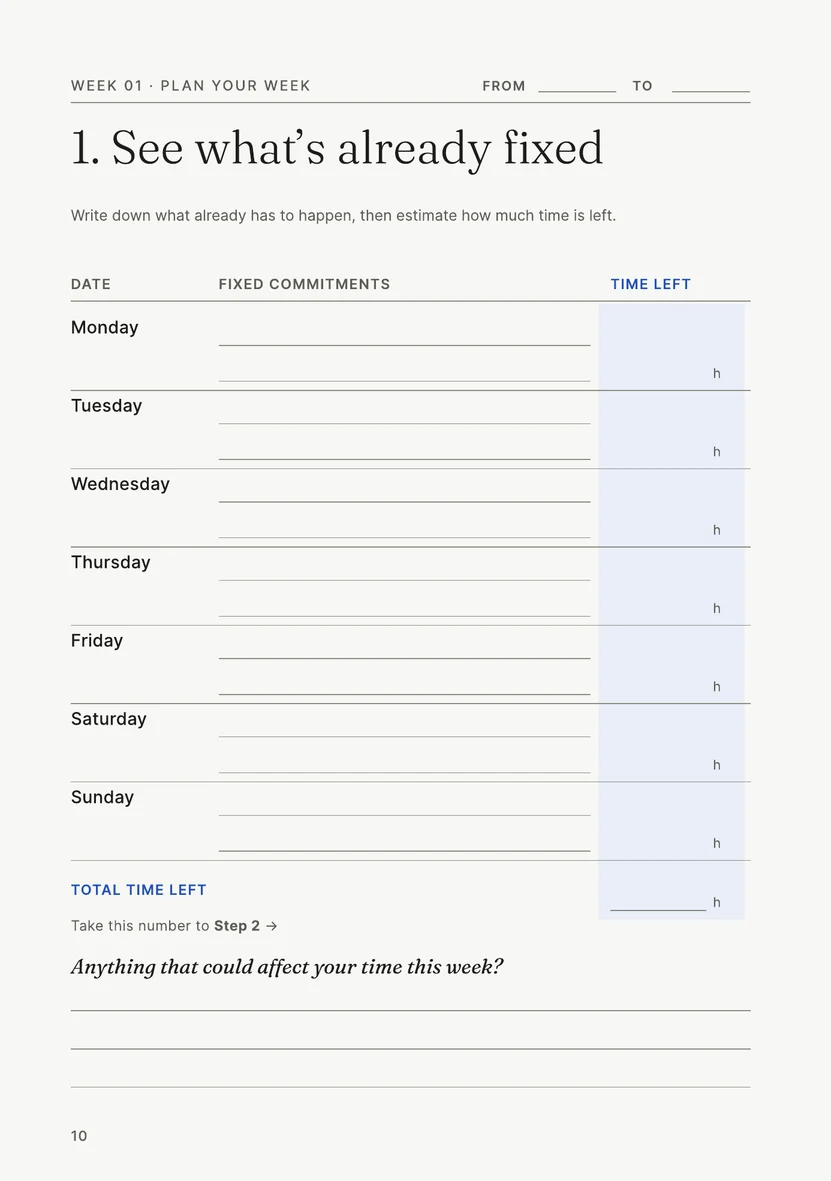
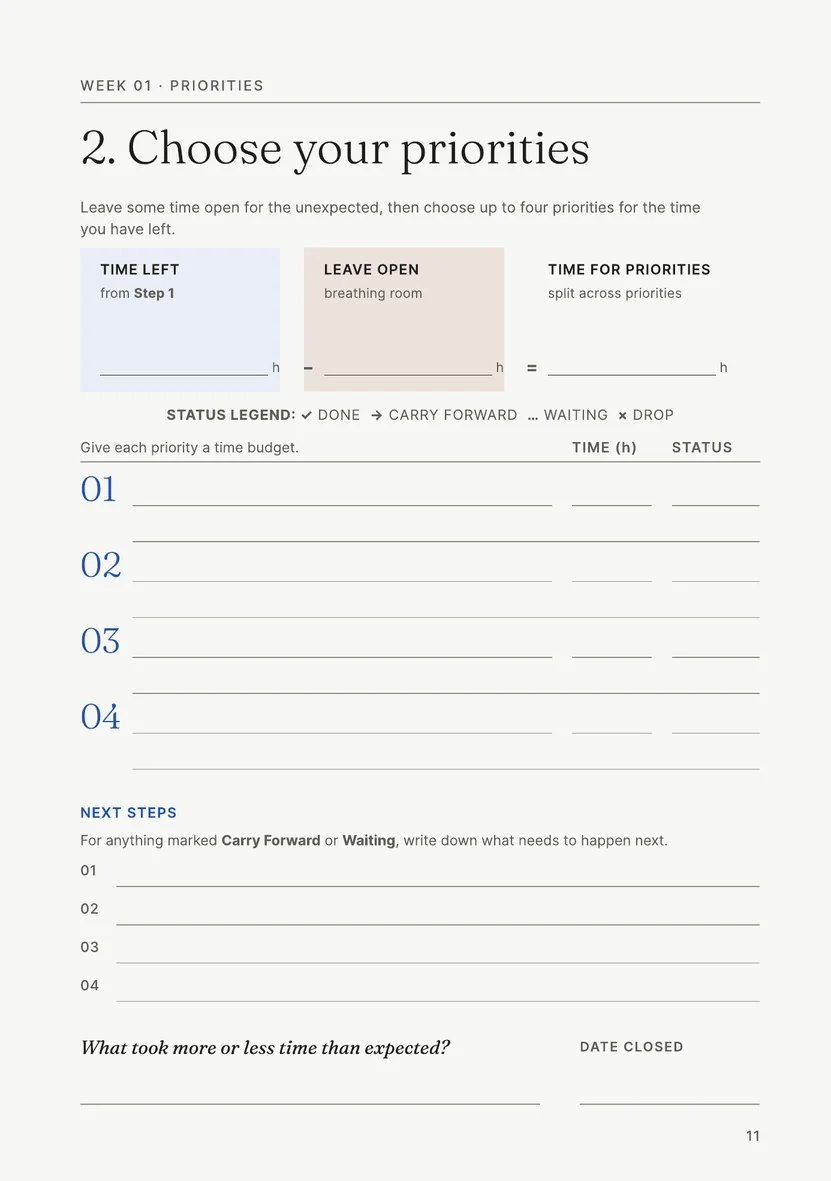
Use a sheet of paper or a note on your device. In The Week Book, use Week 01: Plan your week on page 10 and Priorities on page 11.
- Decide which hours you are planning: working hours, personal time or both. For each day, list commitments within those hours that are already fixed, such as meetings, appointments, travel or the school run.
- Estimate the hours still available each day within the period you are planning. Do not count the same hours as both a fixed commitment and time available for priorities.
- Add the daily hours together to get your total time left for the week.
- Decide how many of those hours to leave open for overruns and the unexpected, and take them away.
- Choose up to four priorities and give each a time budget in hours. The budgets together should fit the hours that remain.
- As the week goes on, mark each priority Done, Carry Forward, Waiting or Drop. For anything marked Carry Forward or Waiting, write the next step.
If a commitment changes, update the affected day’s available hours and adjust the priority budgets if necessary. In the edition, use “Anything that could affect your time this week?” on page 10 to explain the change. At the end of the week, write what took more or less time than expected and record the date you close the week. Use that note when you estimate next week’s hours.
Common questions
- What if I miss a week?
- The Week Book is undated. Date each week when you start it. The title page says to work through the weeks in order and skip calendar weeks when you need to.
- Won’t it turn into a second job?
- Each week uses two planning pages: one for fixed commitments and the hours left each day, and one for up to four priorities, each with a time budget and a status. Notes pages follow.
- What if I always plan more than I can do?
- On the weekly planning pages, Step 1 totals the hours left after fixed commitments. Step 2 subtracts the time you choose to leave open before you allocate hours to priorities. Keep the combined priority budgets within the hours that remain.
What the full edition adds
The Week Book
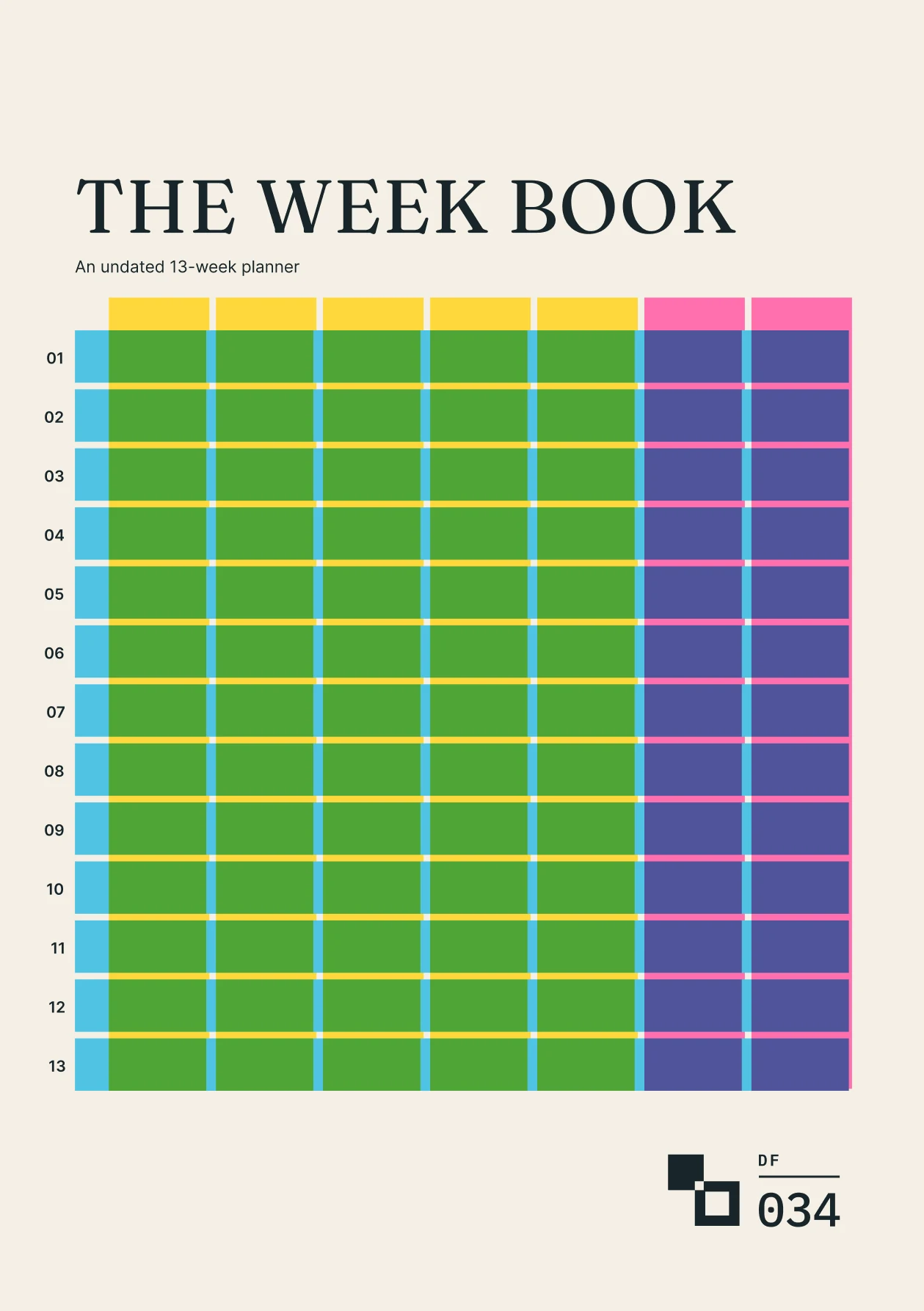
- Thirteen undated weeks
- Each week has a Plan your week page with a row for each day, a Priorities page with a status key and next steps, and notes pages.
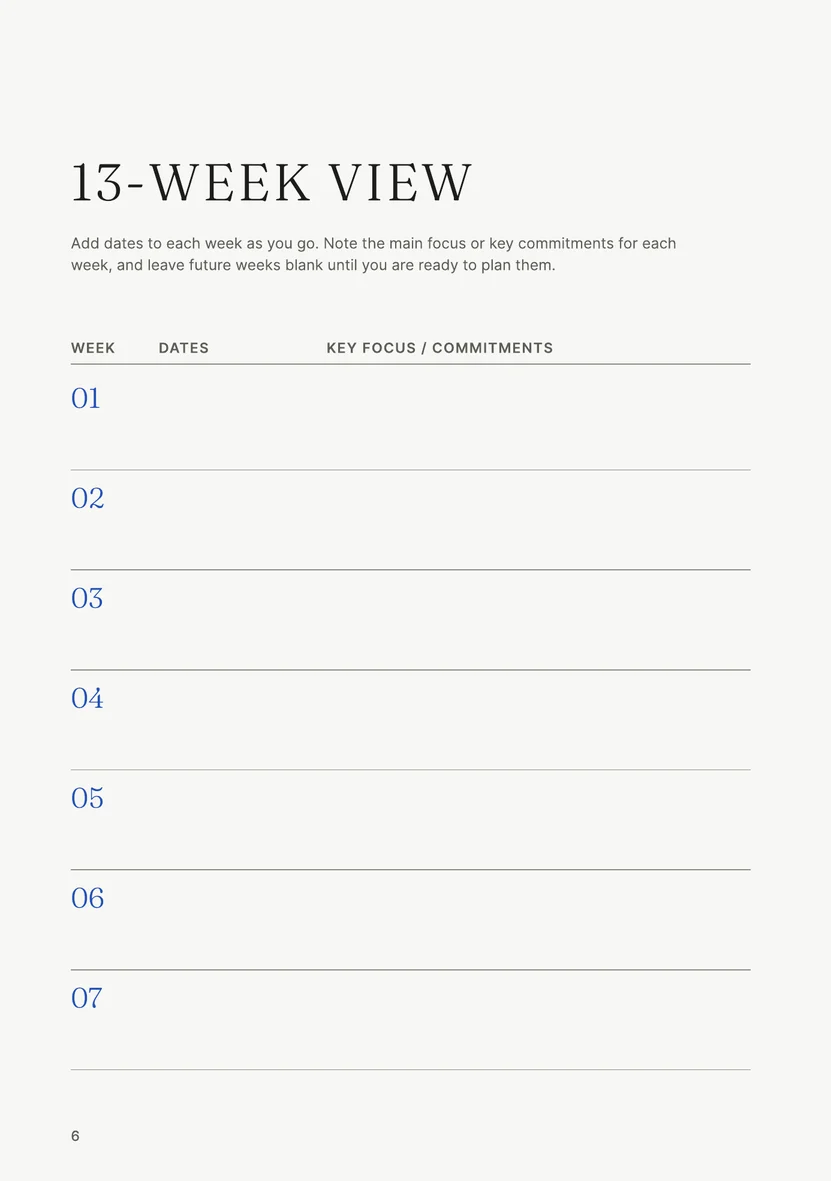
- A 13-week view
- Date each week as you go and note its main focus or key commitments.
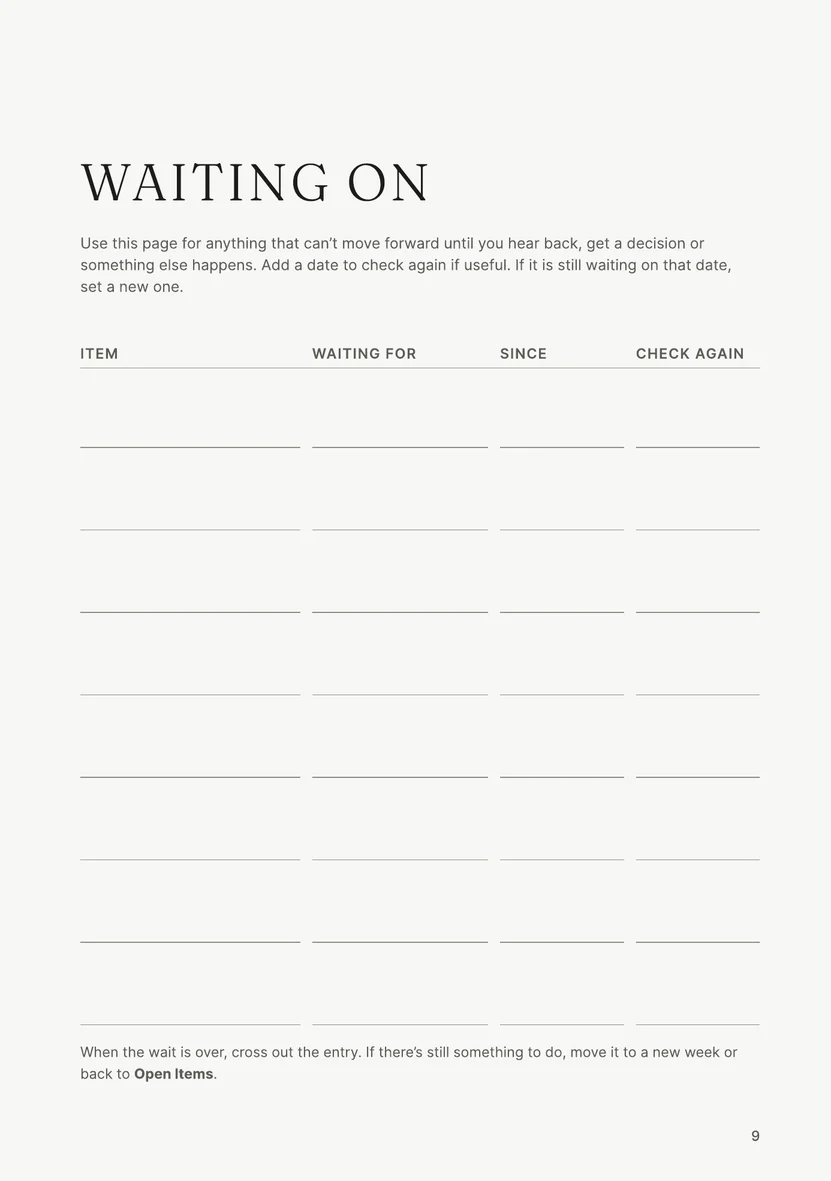
- Open Items and Waiting On
- One page for things to come back to that are not yet assigned to a week, and one for anything that cannot move until you hear back, get a decision or something else happens, with a date to check again.
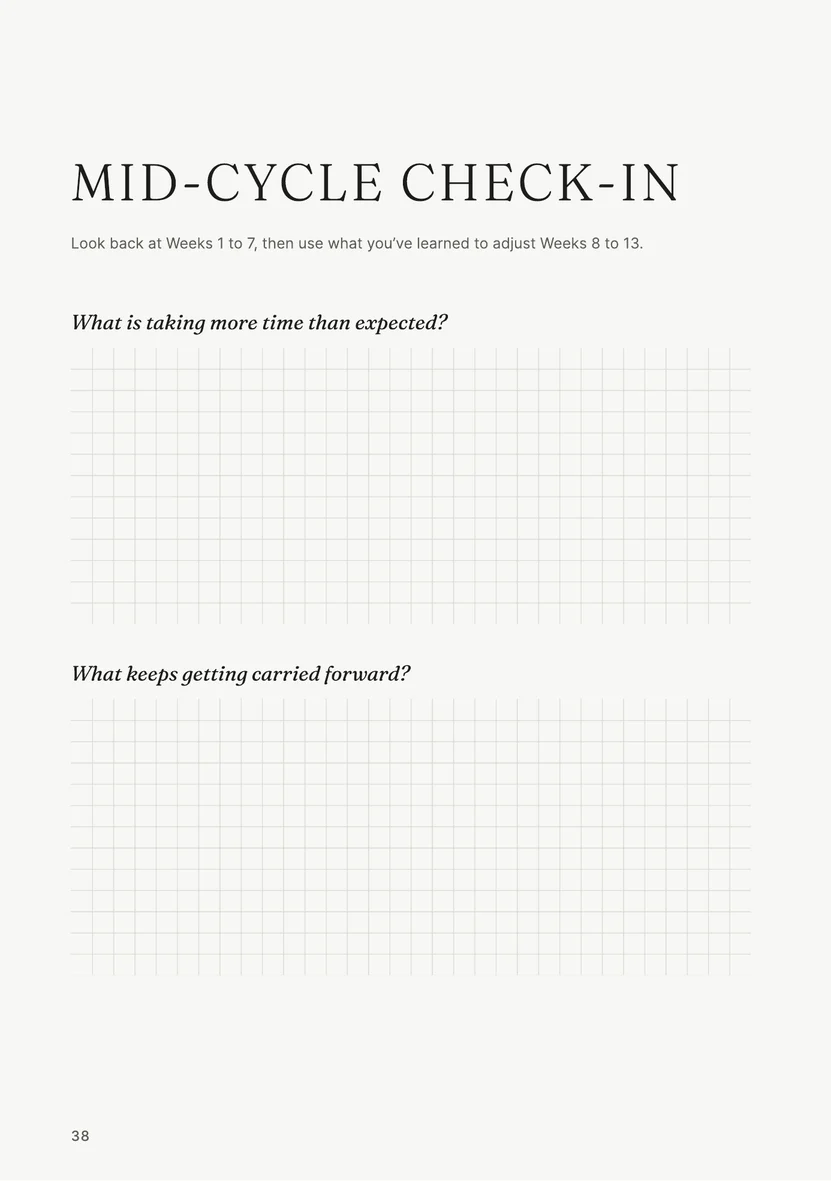
- Two reviews
- A mid-cycle check-in after Week 7 asks what is taking more time than expected and what can be dropped, deferred or made smaller in Weeks 8 to 13. Close the cycle, after Week 13, asks what mattered less than expected and what to make more room for next cycle.
Free utility
Year Planner
Build a Year Planner workbook in Excel: twelve months on one printed page, with milestones, holidays and deadlines marked. Use it to see which weeks are already busy before you plan them. Free to use. No account.